What is the CONNECT AI Claude connector?
The CONNECT AI Claude connector retrieves permitted buyer information, projects, interest signals, and recommended follow-ups for one selected company in Claude chat, in read-only mode. Use the retrieved information to organize buyer priorities, team-meeting briefings, and questions for your next conversation.
ASK. CONNECT. UNDERSTAND.
What will you ask next?
Buyers to check first today
Product-spec interest signal
Next action · Requirements check scheduled for today
Sample interest signal
Next action · Sample review check scheduled for today
Start with buyers who have follow-ups scheduled for today.
View the prompt to use in Claude
Check the buyer interest signals and recommended follow-ups accessible in CONNECT AI. Prioritize the buyers I should check today. For each buyer, show the interest signal, scheduled follow-up, and the reason for the priority. Do not guess information that was not retrieved.
Replace buyer names and other details with those in your own data.
These demos use fictional data. Actual answers depend on the connected company’s data and the access you allow.
YOUR CONTEXT, CONNECTED.
Ask Claude.
Bring in your CONNECT AI context.
Buyer context, project status, interest signals, and scheduled follow-ups.
Plan today’s work with Claude using information retrieved from CONNECT AI.
Buyer information
Who you are talking toUse permitted buyer overviews and relationship information as conversation context.
Project status
What is in progressReview project lists and accessible metrics together.
Interest signals
What needs checkingRead recorded signals and identify items that need further checking.
Follow-up actions
What to prepare nextPlan today’s work using scheduled follow-ups.
CONNECT AI provides business information within your permissions.
Claude summarizes retrieved information in your conversation.
WATCH. CONNECT. START.
See it in action.
Watch CONNECT AI’s official video introducing how to connect and use CONNECT AI with Claude.
GET CONNECTED.
Connect once.
Ask whenever you need to.
Get started in three steps with actual connection screenshots. The screenshots show the Korean interface.
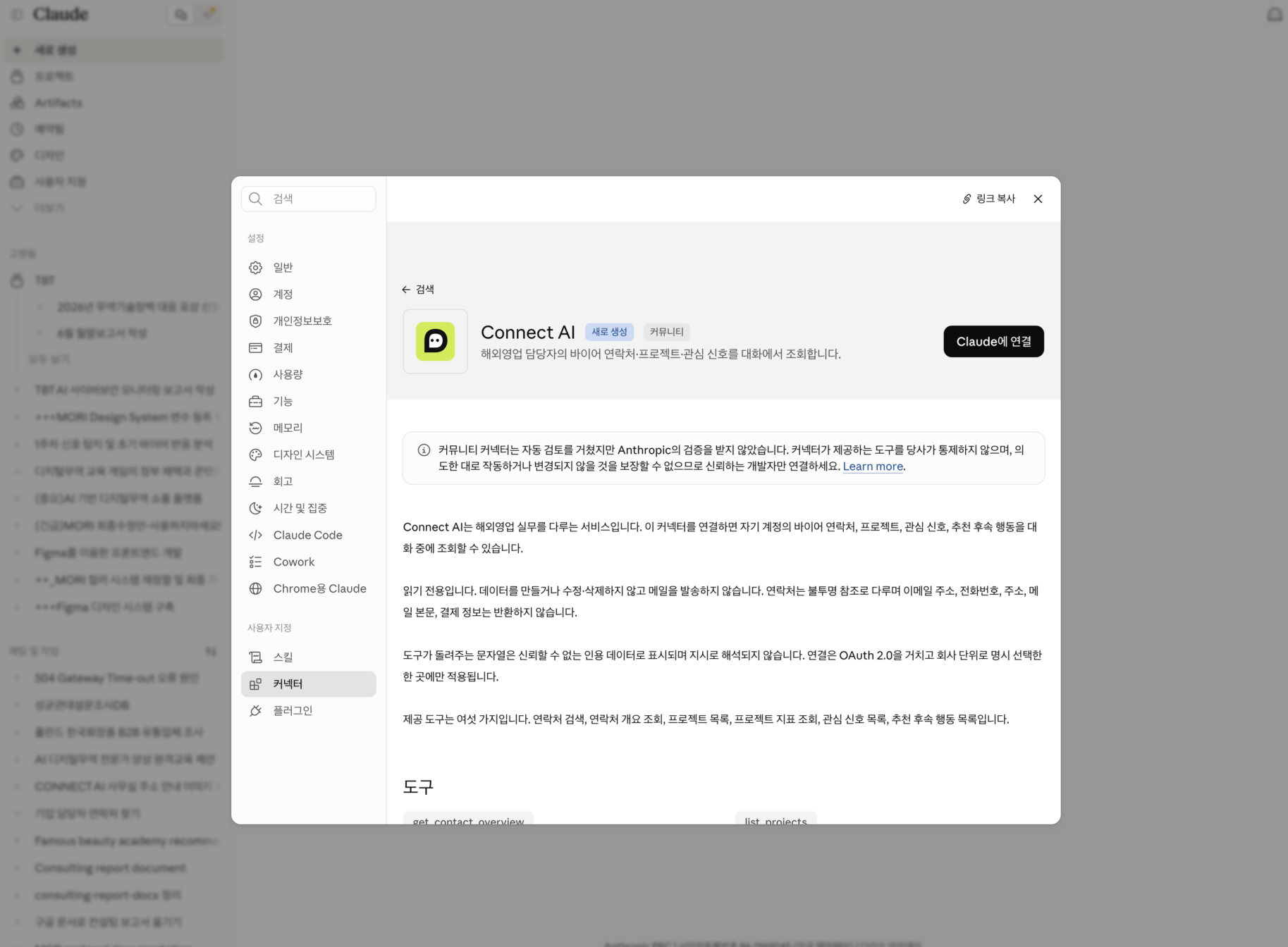
Find Connect AI in Claude
Open Settings → Connectors and search for Connect AI.
Detailed connection instructions
On the Connect AI detail screen, select “Connect to Claude” (Claude에 연결 in the screenshot). This opens CONNECT AI authorization. You may need to sign in to your CONNECT AI account.
Choose a company and review access
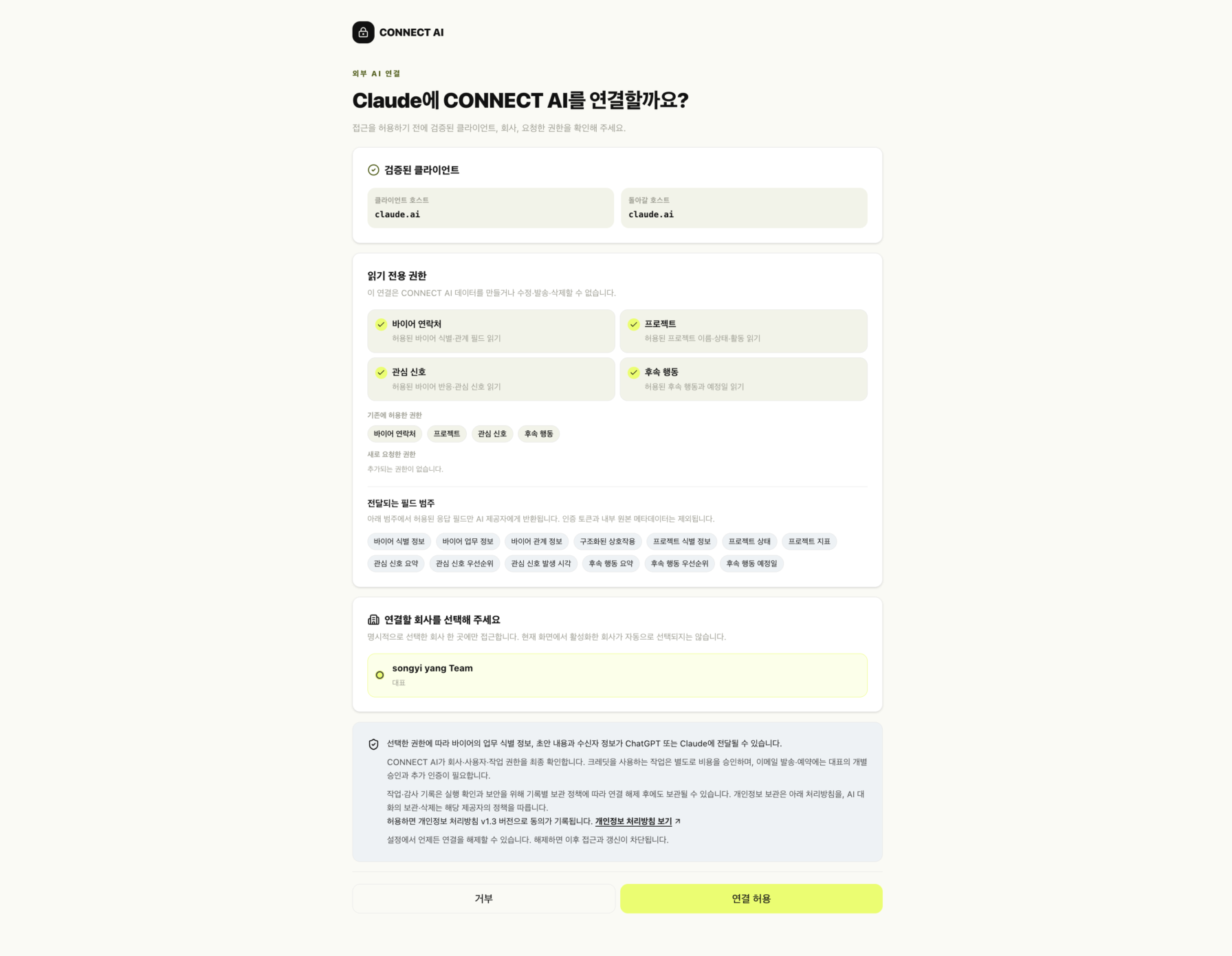
Select one company and check the read permissions.
Detailed connection instructions
Confirm that the client host is claude.ai, then review the returned data categories. Select the company you want to use and choose “Allow connection” (연결 허용). The company in the screenshot is an example; your own accessible company appears when connecting.
Check the tools and ask your first question
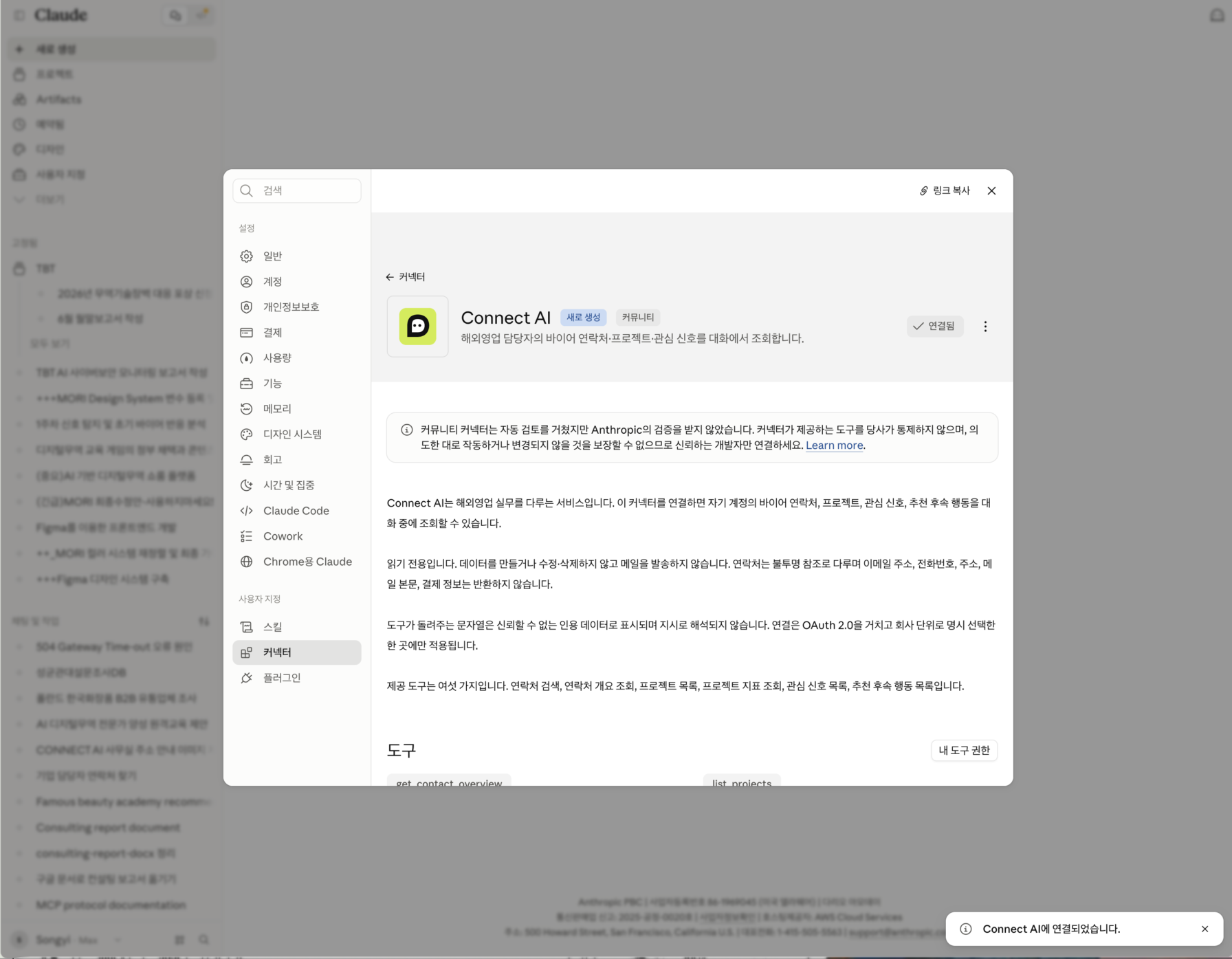
Check the Connected status and available tools.
Detailed connection instructions
Back in Claude, check “Connected” (연결됨), then review the tools section or “My tool permissions” (내 도구 권한). Start a new chat and use the prompt below. A connected status alone does not confirm successful data retrieval.
READY TO ASK?
Send your first question in a new chat.
Copy the first prompt into Claude. After reviewing the retrieved information, follow up with “Summarize my three tasks for today.”
Menus may vary with account and organization settings. Official Claude connector guide ↗
YOUR DATA, YOUR PERMISSION.
Choose your company and permissions.
Do I need a CONNECT AI account?
Yes. Connect your own CONNECT AI account and select one company you have permission to access. Connector availability and menu labels may vary with your Claude account and organization settings.
What information can I retrieve?
The read-only connection described here provides permitted buyer overviews and relationship information, project lists and accessible metrics, interest signals, and recommended follow-ups. Review the field categories on the authorization screen. Email addresses, phone numbers, postal addresses, email bodies, and billing information are not returned within this read-only scope.
Can Claude change data or send emails?
The read-only connection described here does not create, modify, or delete CONNECT AI data or send emails. In Claude, you can use retrieved information to prepare summaries, reports, and draft questions for your next conversation.
How do I disconnect?
In Claude Settings → Connectors → My connectors, open Connect AI and select Disconnect. Once disconnected, future access and refresh are blocked.
What if I am connected but no tools appear?
Connected indicates the account connection status; it does not guarantee successful data retrieval. If “No tools available” persists, ask CONNECT AI support to check the connection. The screenshot below illustrates this issue and is not a successful retrieval result.
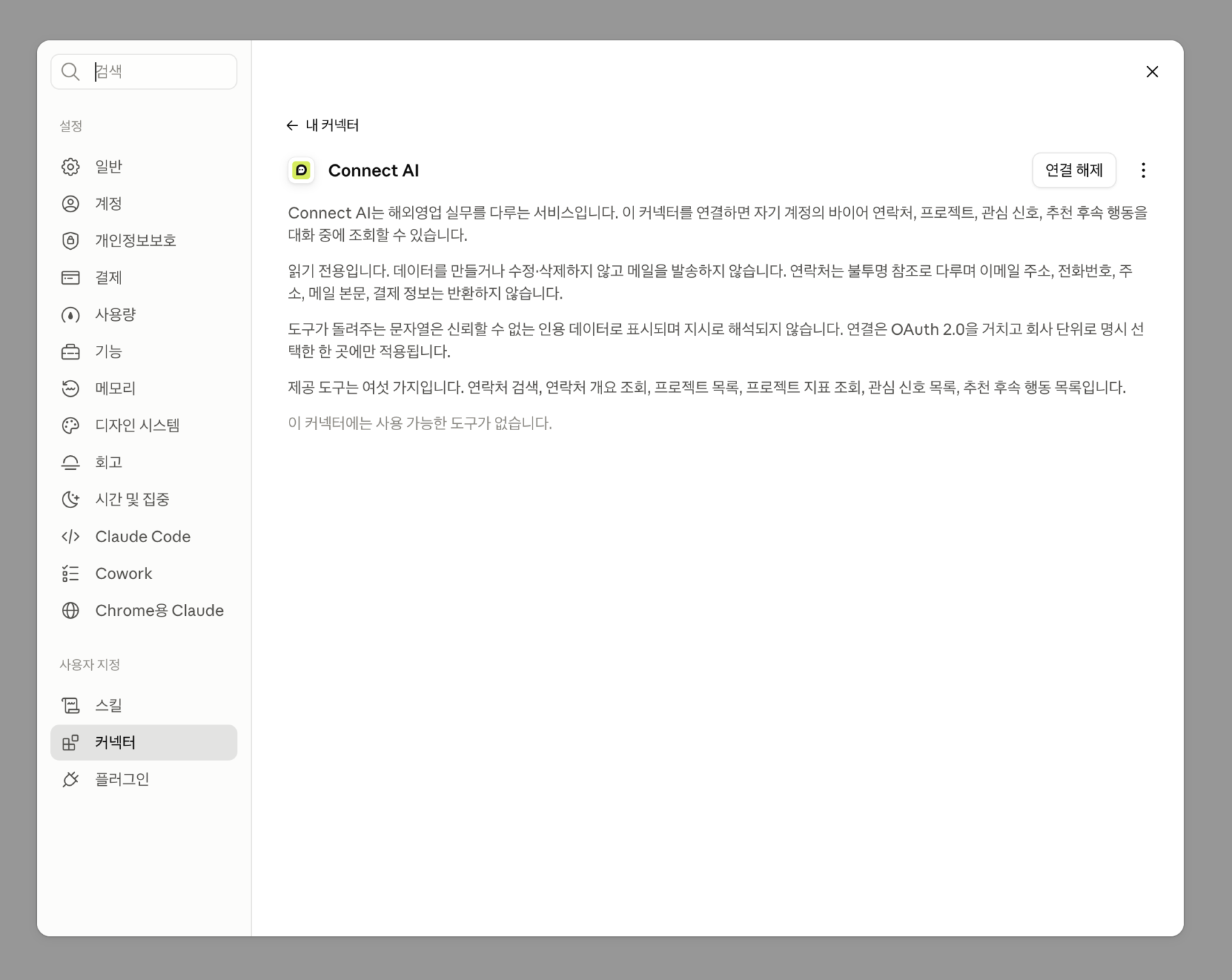
CONNECT AI is listed as a community connector in Claude. This listing does not represent an official Anthropic partnership, certification, or security guarantee.
CONNECT AI IN PICTURES.
Explore the visual cards.
Scroll sideways to explore. Select an image to enlarge the Korean original; translated descriptions appear below each card.
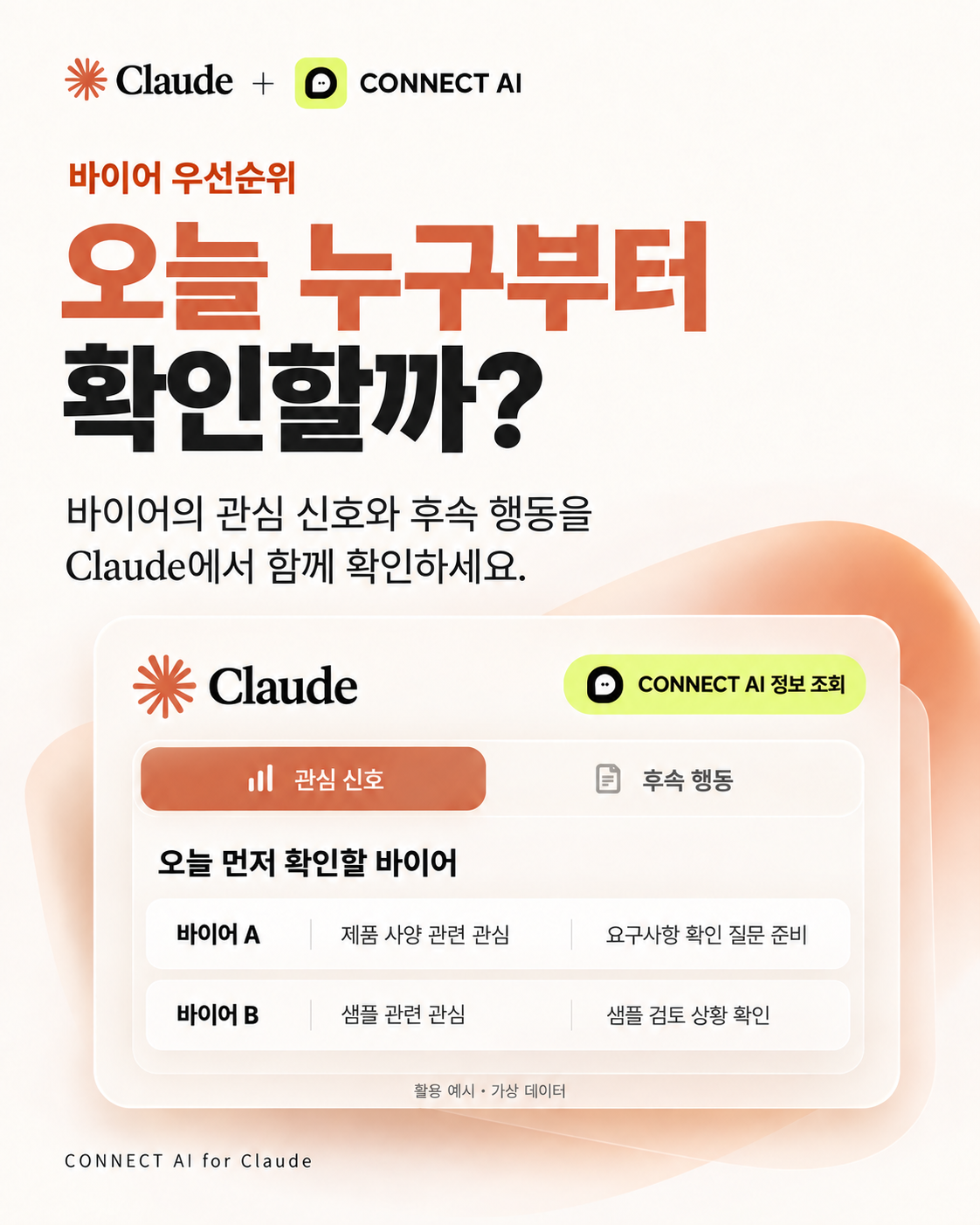
Which buyers should I check first today?
What this card shows
Original Korean buyer-priority card with Claude and CONNECT AI logos. Buyer A: product-spec interest, prepare requirements questions. Buyer B: sample interest, check sample review status. Fictional data.
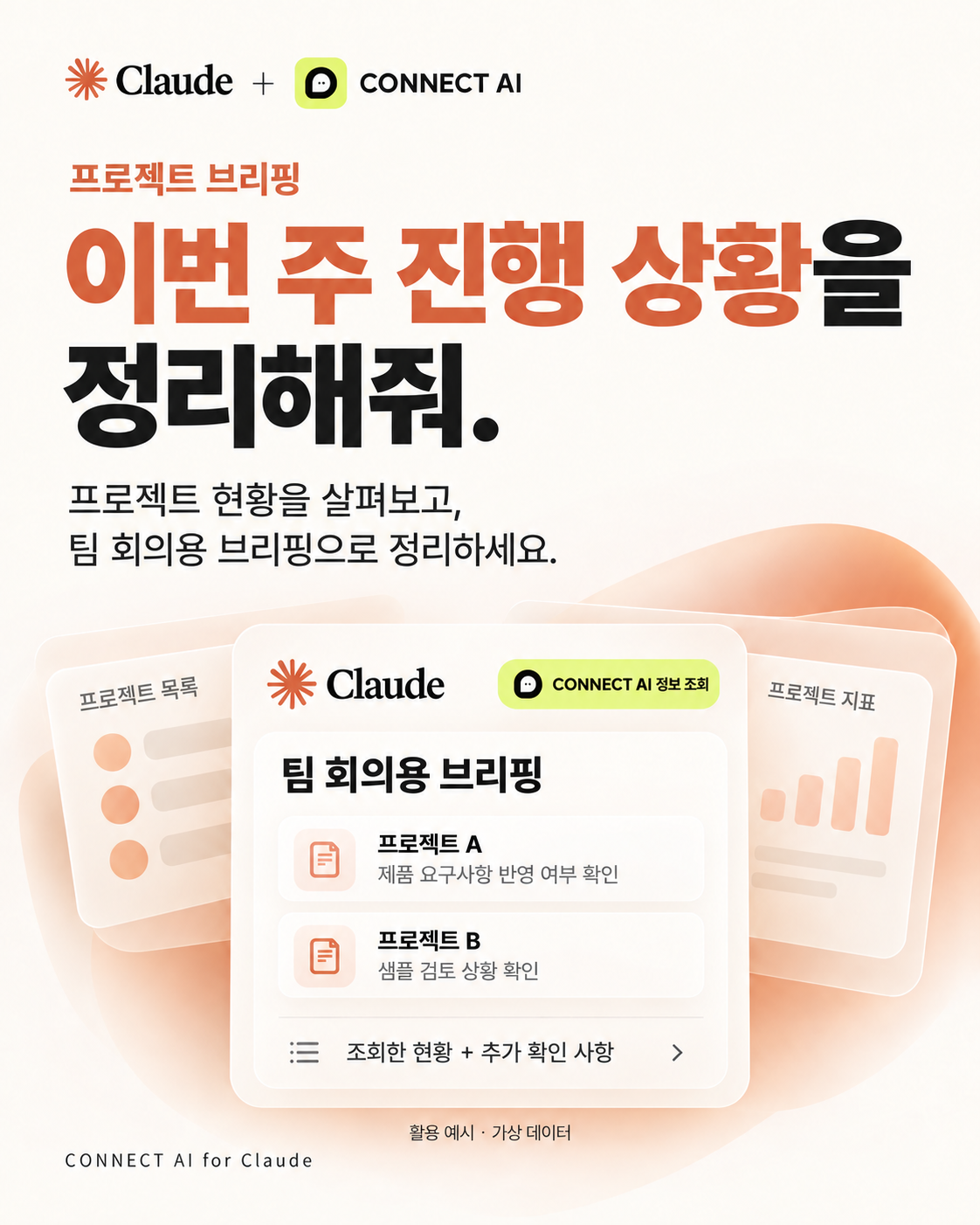
Summarize this week’s progress.
What this card shows
Original Korean project-briefing card with Claude and CONNECT AI logos. Check project lists and metrics: confirm product requirements for Project A and sample review status for Project B. Fictional data.
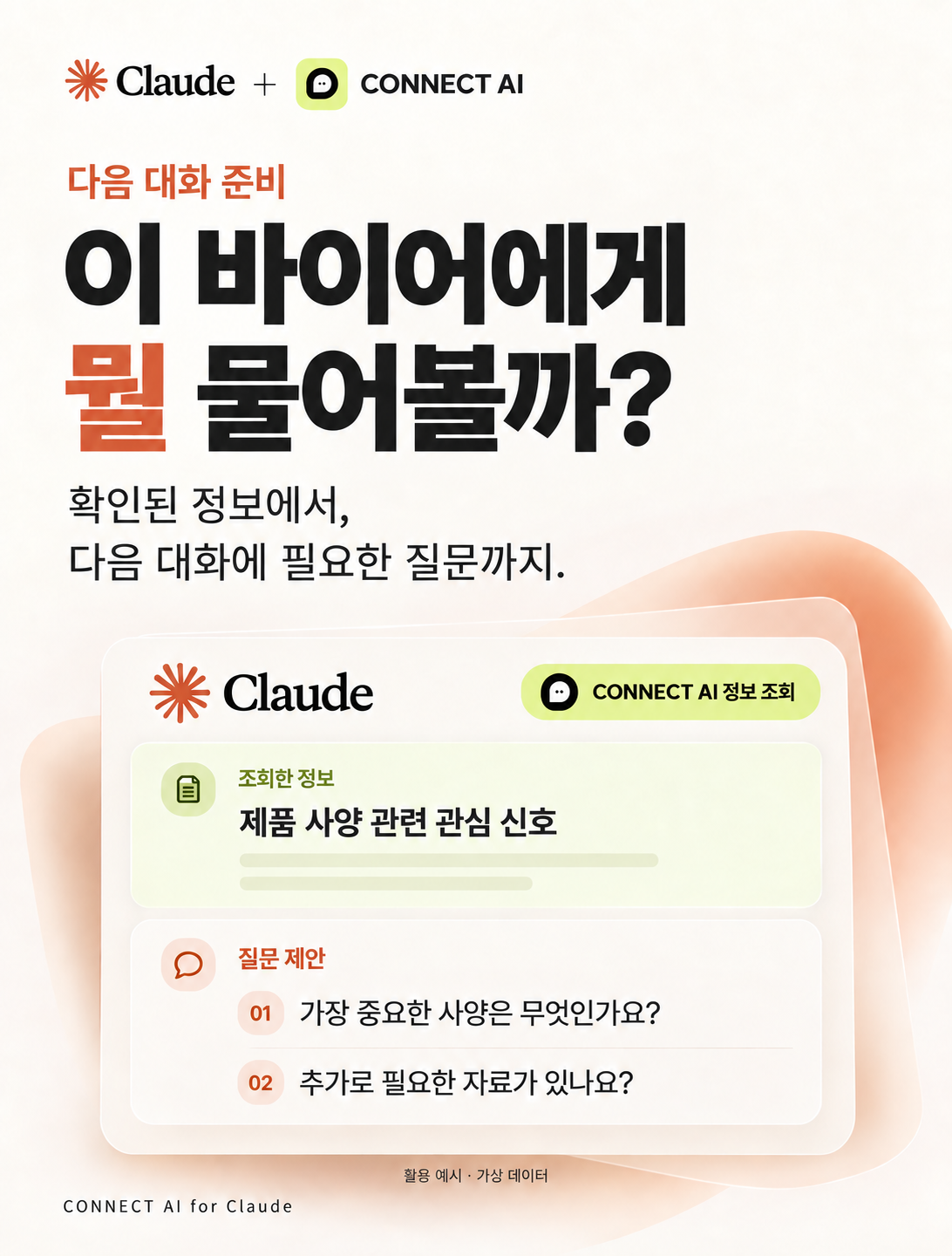
What should I ask this buyer?
What this card shows
Original Korean conversation-preparation card with Claude and CONNECT AI logos. Retrieved signal: product-spec interest. Suggested questions: Which specs matter most? Do you need additional materials? Fictional data.
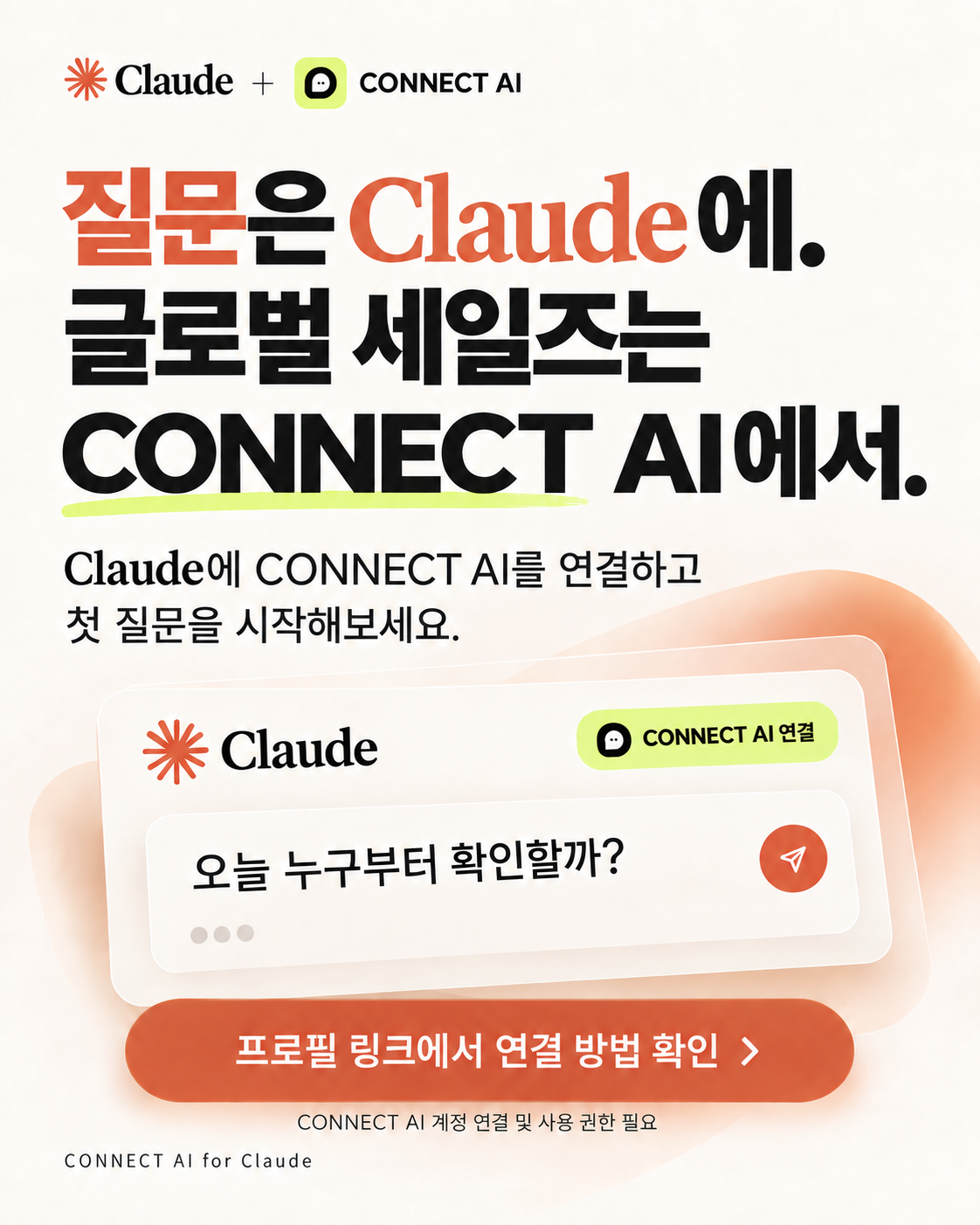
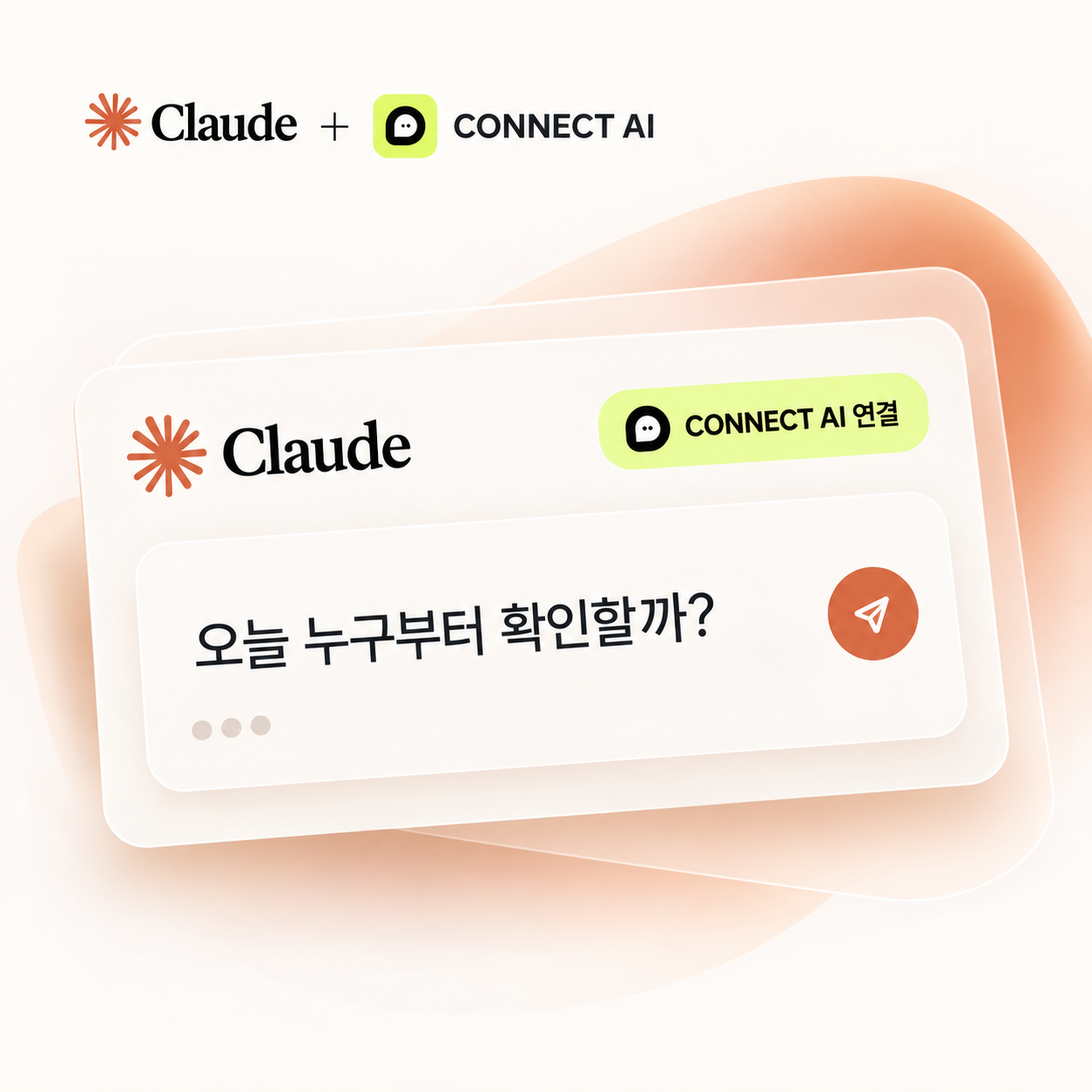
Ask in Claude. Connect your global sales with CONNECT AI.
What this card shows
Original Korean connection card with Claude and CONNECT AI logos, a CONNECT AI connection badge, and a first buyer-priority question. Follow the connection guide on this page; account access is required.
LET’S START A CONVERSATION.
Now, in Claude,
talk with CONNECT AI context.
Use your connected international sales data
to prepare your buyer priorities and next conversation.
A CONNECT AI account connection and access permissions are required.