
MORI NEWSLETTER

Your newest product news —
let overseas buyers hear it first.

From new products to real-world applications and trade show news.
Give buyers a reason to take another look and get in touch —
share your news consistently with a newsletter.
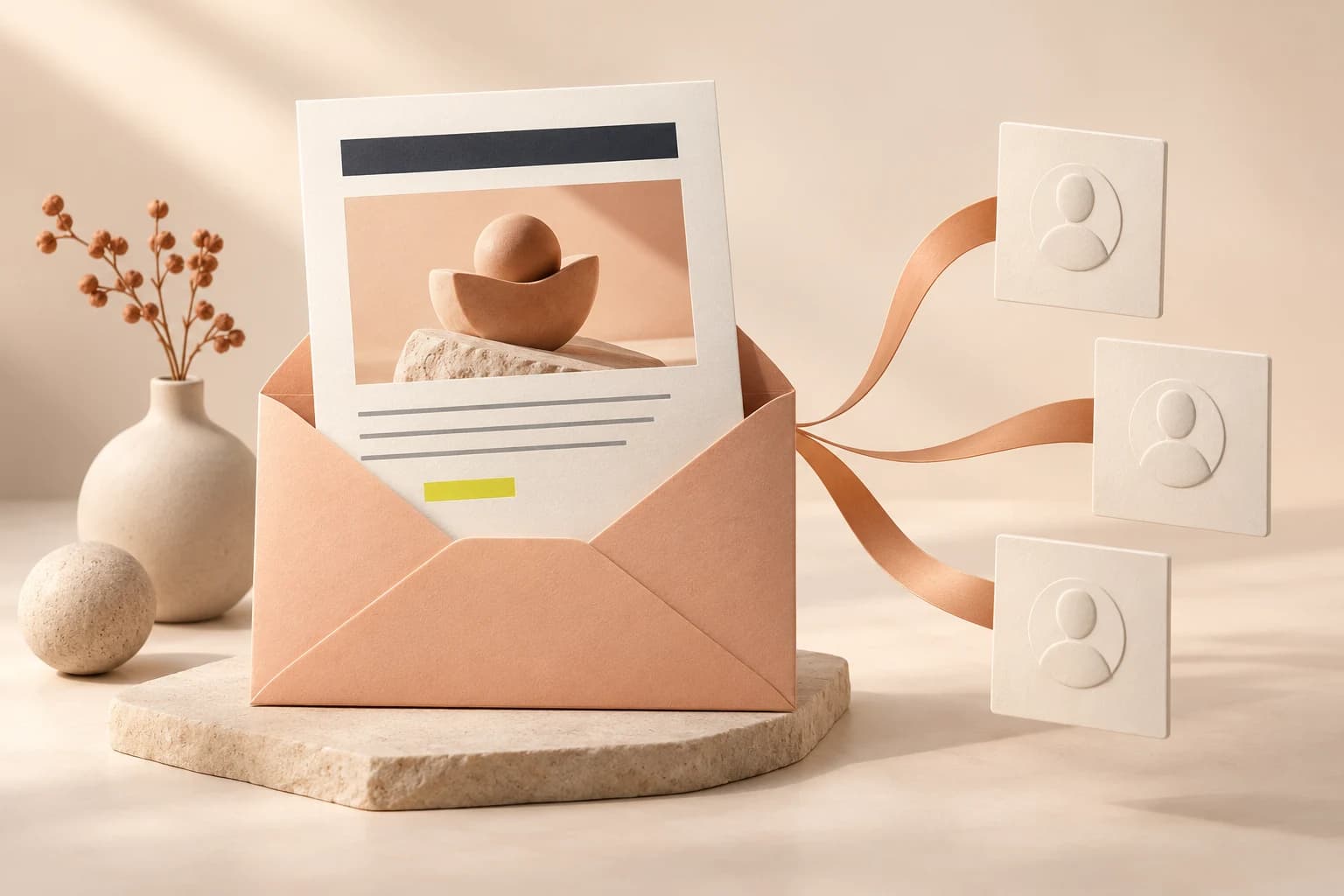
Relationship concept illustration showing a brand newsletter, an envelope and subscriber cards
From one meeting to the next updateFeature illustration
How a newsletter keeps your company known and builds trust
MORI feature guide · 5 min read
01

BE KNOWN. BUILD TRUST.

Why send a newsletter?

In global sales, awareness and trust lay the groundwork for the next conversation. Keep sharing well-organized updates so that overseas buyers you have just connected with can recall and refer to your company and products when they evaluate a purchase.

01 / AWARENESS

A reason to remember your company

Introduce new products and updated specifications to remind buyers what your company offers.

NEW PRODUCT
Details that bring your company and products to mind
02 / TRUST

Information that supports trust

Share where your products are actually used and the cases you have seen in the field, giving buyers grounds to evaluate what you tell them.

FIELD STORY
Real cases to inform their decision
03 / NEXT CONVERSATION

A reason to start the next conversation

Announce trade show appearances and other news so that interested buyers have a reason to ask questions or discuss your next meeting.

EXHIBITION NEWS
News that leads to questions and meetings
Carry on with MORI

Prepare your next update under the same brand.

Apply your logo and colors to your brand and start from a default design. Save the finished layout to My templates to reuse in your next issue, and use subscriber groups or interest tags to choose the opted-in recipients who fit each update. After sending, review recorded clicks and replies as you prepare your next update and conversation.

02

A REAL SAVED TEMPLATE

How CONNECT AI uses it.

This is the “Claude Promo” newsletter featuring CONNECT AI news. Look through the actual template selection screen and email preview to see how to turn your own company news into a newsletter.
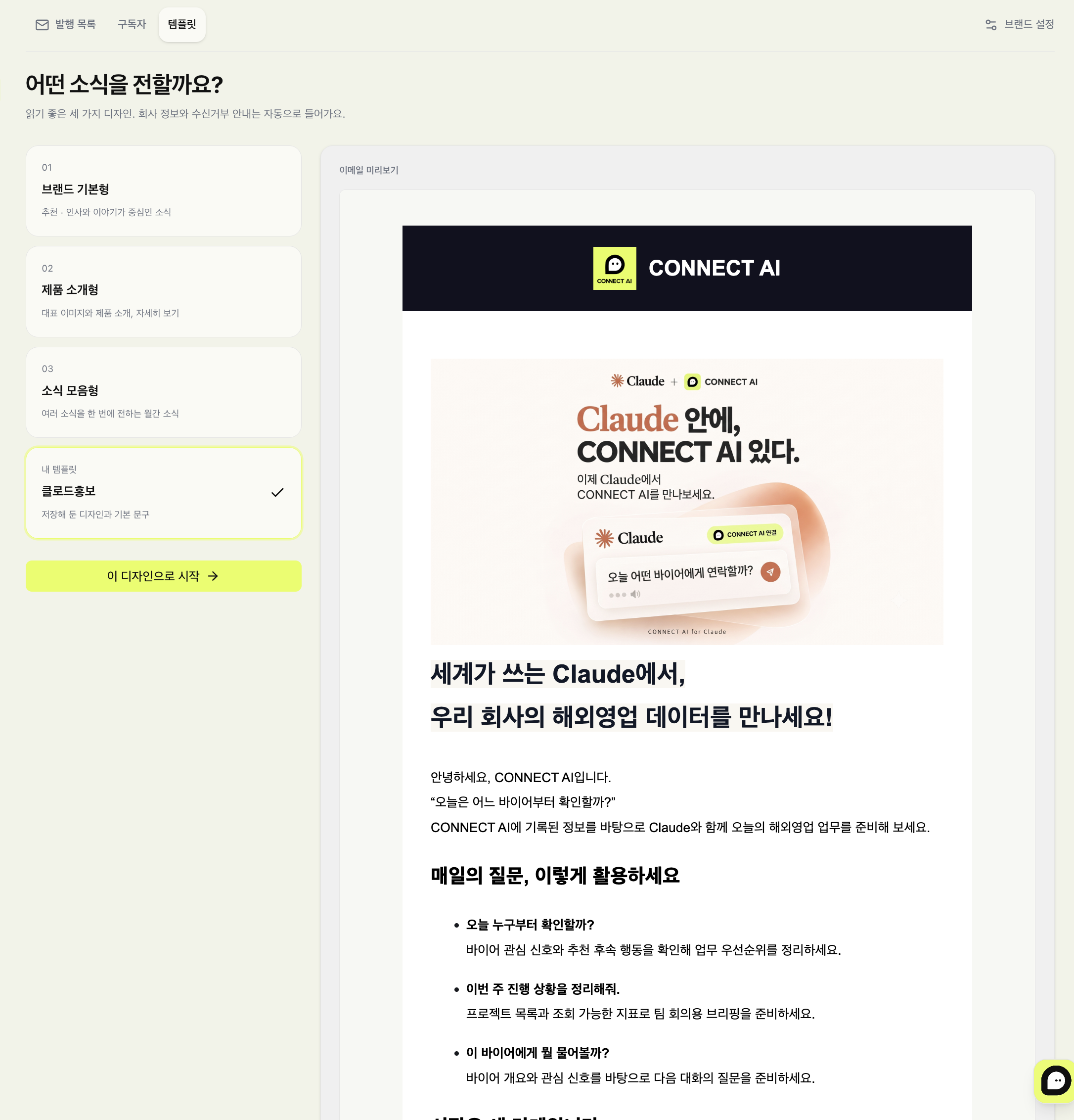
CONNECT AI · Actual newsletter template screenView full size
The Templates tab of the newsletter feature with the saved template ‘Claude Promo’ selected. On the left is the ‘Start with this design’ button; on the right is an email preview with the CONNECT AI brand and the story ‘Inside Claude, meet CONNECT AI’. The interface in the screenshot is in Korean.
2026.10.07 · The saved ‘Claude Promo’ template and its email preview (Korean interface). Select the image to view it full size.

Create your news once,
and carry it forward with templates.

This is the ‘Claude Promo’ template, saved with CONNECT AI news. It announced the update with the company logo and a hero image, then showed how to use the service through three questions: buyer priorities, project briefings and preparing the next conversation.

  1. 01
    Select a template

    On the ‘Templates’ tab, choose a default design or one of ‘My templates’. This screen shows the saved ‘Claude Promo’ template selected.

  2. 02
    Review the email preview

    On the right, check how the brand, hero image and body text flow together, and whether readers can understand the news and how to use it.

  3. 03
    Select ‘Start with this design’

    Create a new issue with the selected design and fill in this issue’s subject and content. After editing, check the desktop and mobile previews and send a test to your own email.

Keep the same brand in your next update.

‘Claude Promo’ is a template saved by CONNECT AI. Complete your layout with your own logo, colors and the blocks you need, then save it to ‘My templates’ to reuse in your next issue.

See how to connect Claude, as introduced in this newsletter
03

FROM FIRST ISSUE TO NEXT

Create your first newsletter like this.

Open Newsletters from the project menu to manage issues, subscribers and templates in one place. Select each step below to follow the process from writing to your next issue.

STEP 01

Set up your brand

Choose your publisher name, logo and colors, and fill in your company address and reply email. Select a connected Google or SMTP account as the sender and save.
MORI NewsletterHow-to example
Publisher nameSensor Solutions A
Company addressEnter your company address
Contact and reply emailEnter the email for inquiries
Connected sender accountSelect and save in Brand settings

Your company details also apply to future newsletters.

1 / 6

This example shows how the feature works. Changing the selections here does not send anything or register subscribers.

04

BEFORE YOU START

Before you send.

Can I use my existing buyer contacts as subscribers right away?
Only use lists of people who have agreed to receive your newsletter. You can import an existing consented list as a CSV together with where and when consent was obtained, the notice shown and supporting records. Registering a business card or contact is separate from subscription consent.
Do I have to build the design from scratch?
You can start from three default designs: greeting and story, featured product and monthly digest. Apply the blocks you need along with your logo and colors, and save the result to My templates to use in future issues.
What do I need to prepare before sending?
Set your company name, company address and reply email, connect a Google or SMTP account, then select and save it as your sender account in Brand settings. You can send to up to 500 people at a time, and the credits required are shown after you choose your audience.
Can I test before sending?
Check the desktop and mobile previews, then send a test to the email address you are signed in with. Make sure images display and buttons link to the correct URLs. Fonts and spacing can vary by email app.
Can I cancel or edit a scheduled newsletter?
You can cancel a scheduled send until sending starts. Only the content and audience confirmed when you scheduled are sent, and subscribers who join after scheduling are included from the next issue. To change the content, cancel the schedule, then review and confirm again.
Can I see opens, clicks and replies after sending?
The send results show the processing status, the email you confirmed, and open, click and reply records for trackable sends. Open records may differ from actual reading, and reply counts require a supported sender account and mailbox sync. Earlier sends that were not tracked are not counted retroactively, and acceptance by the email provider does not mean the message reached the inbox.

YOUR NEXT CONVERSATION

Build awareness and visibility
with global buyers through your newsletter!

Tell your brand’s story and share it with buyers who chose to receive your news. It is a small first step toward your next meeting.

Create your first newsletter